Editing the Slider Section
The home page slider section can be accessed through the Admin dashboard:
Click on the Pages tab to reveal all the pages that make up the website. This shows the name of each page and the date it was published.
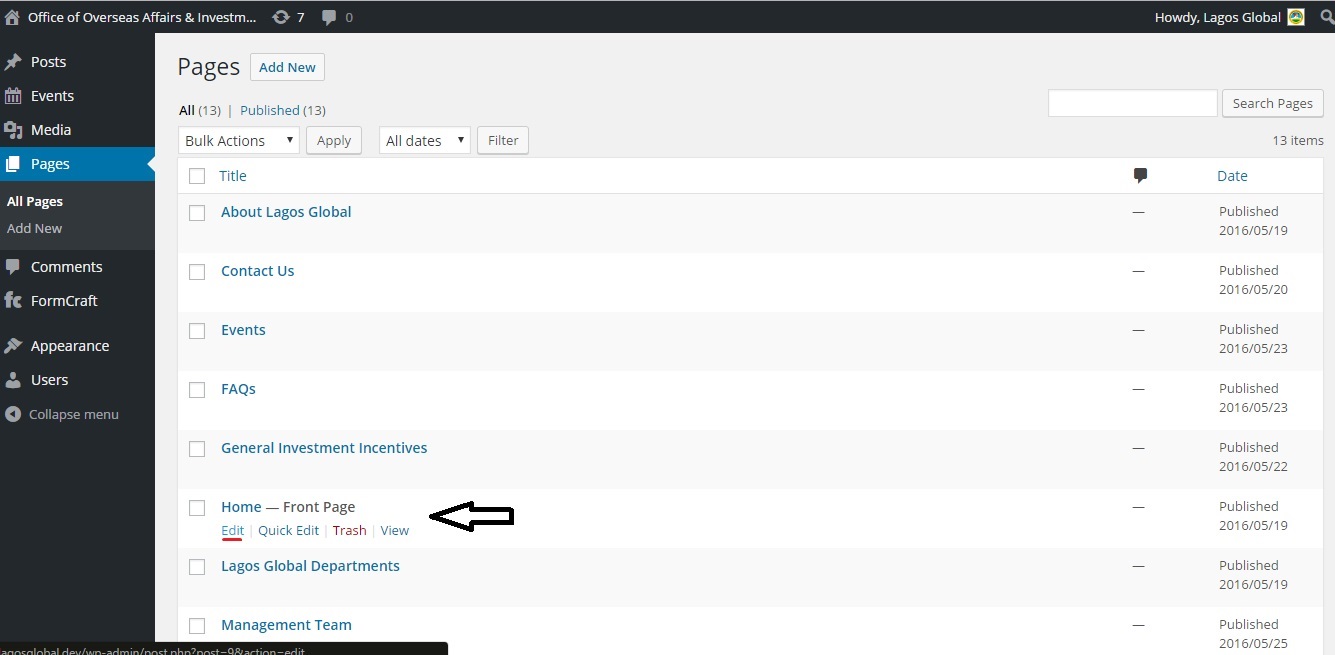
The "Home Page - Front Page" entry contains some of the information rendered on the home page. Hover over it and click on the Edit option. This reveals the building blocks of the different sections of the website's home page. For the slider section, its contents are defined in the Sliders block.

This is where all parameters for each sliding banner is defined - the banner image, descriptions and link to any desired resource.
To edit any existing sliding banner, scroll to the corresponding row on the slider's block and make the required changes.
When you hover over each banner, two buttons are displayed with ' + ' and ' - ' signs respectively.

- The ' + ' button adds a new banner before the current one.
- The ' - ' button DELETES the current banner.
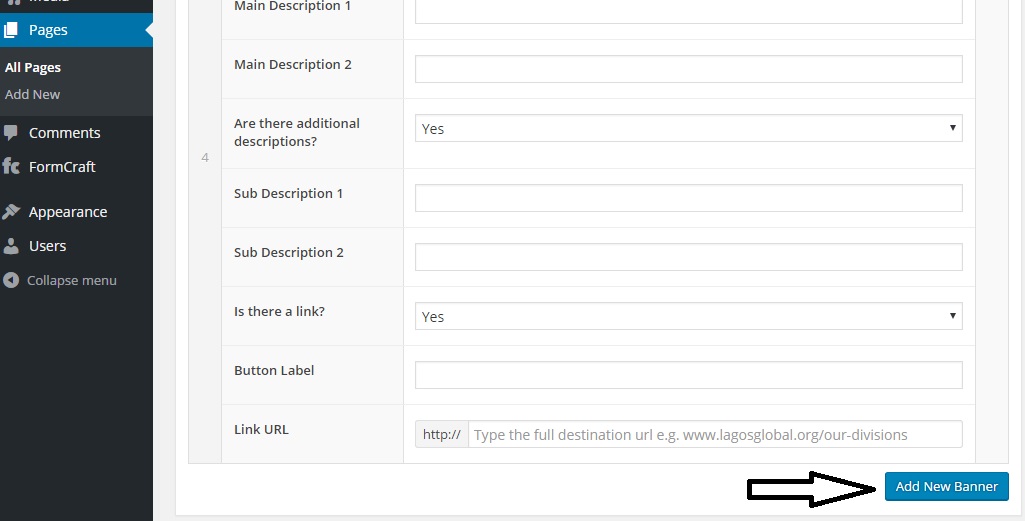
To add a new banner after the last one, an "Add New Banner" button is provided at the bottom:
Update your change(s).